


As a seasoned supplier of serial cables, I've encountered numerous customers facing the frustrating issue of slow serial cable connections. In this blog post, I'll share some practical troubleshooting steps to help you diagnose and resolve this problem effectively.
Understanding the Basics of Serial Cable Connections
Before diving into troubleshooting, it's essential to understand how serial cable connections work. Serial cables transmit data one bit at a time over a single communication line. They are commonly used to connect devices such as computers, printers, modems, and industrial equipment. The speed of a serial cable connection is determined by several factors, including the cable quality, the baud rate, the device compatibility, and the presence of interference.
Step 1: Check the Cable
The first step in troubleshooting a slow serial cable connection is to check the cable itself. A damaged or faulty cable can significantly affect the connection speed. Here are some things to look for:
- Physical Damage: Inspect the cable for any visible signs of damage, such as cuts, kinks, or frayed wires. If you find any damage, replace the cable immediately.
- Connection: Make sure the cable is securely connected to both devices. Loose connections can cause intermittent or slow connections. Try unplugging and reconnecting the cable to ensure a proper fit.
- Cable Type: Ensure that you are using the correct type of serial cable for your devices. Different devices may require different cable configurations, such as straight-through or null-modem cables. Using the wrong cable type can result in slow or no connection.
For example, if you need a straight-through cable, you can consider our Straight Through DB9 Female to Female Cable. This cable is designed for direct connections between two devices with DB9 female connectors.
Step 2: Verify the Baud Rate
The baud rate is the speed at which data is transmitted over the serial cable. It is measured in bits per second (bps). If the baud rate settings on the two devices are not compatible, it can cause a slow connection. Here's how you can verify and adjust the baud rate:
- Device Settings: Check the settings on both devices to ensure that they are using the same baud rate. Most devices allow you to configure the baud rate in their settings menu.
- Default Settings: If you are unsure of the correct baud rate, refer to the device manuals or contact the manufacturer for the recommended settings. In some cases, the default baud rate may be different for different devices.
- Testing: Try adjusting the baud rate to a lower value and see if the connection speed improves. If it does, you may need to use a lower baud rate for your connection.
Step 3: Check for Interference
Interference can also cause slow serial cable connections. Electrical interference from nearby devices, such as motors, power supplies, or fluorescent lights, can disrupt the data transmission. Here are some ways to reduce interference:
- Distance: Keep the serial cable away from sources of interference. Try to route the cable as far away as possible from electrical equipment.
- Shielding: Use shielded serial cables to reduce the effects of interference. Shielded cables have an extra layer of insulation that helps to block out electromagnetic interference.
- Grounding: Ensure that both devices are properly grounded. A good ground connection can help to reduce electrical noise and improve the connection quality.
Step 4: Update Device Drivers
Outdated or incompatible device drivers can also cause slow serial cable connections. Device drivers are software programs that allow the operating system to communicate with the hardware. Here's how you can update the device drivers:
- Manufacturer's Website: Visit the manufacturer's website for your devices and download the latest drivers. Make sure to download the drivers that are compatible with your operating system.
- Device Manager: On Windows computers, you can use the Device Manager to update the device drivers. Open the Device Manager, locate the serial device, right-click on it, and select "Update driver."
- Restart: After updating the device drivers, restart your computer and the connected devices to apply the changes.
Step 5: Test with Different Devices
If you have tried all the above steps and are still experiencing a slow connection, it's possible that the problem lies with one of the devices. Try testing the serial cable with different devices to isolate the issue. Here's how you can do it:

- Other Computers: Connect the serial cable to a different computer and see if the connection speed improves. If it does, the problem may be with the original computer.
- Other Devices: Try connecting the serial cable to a different device, such as a printer or a modem. If the connection speed is normal with the new device, the problem may be with the original device.
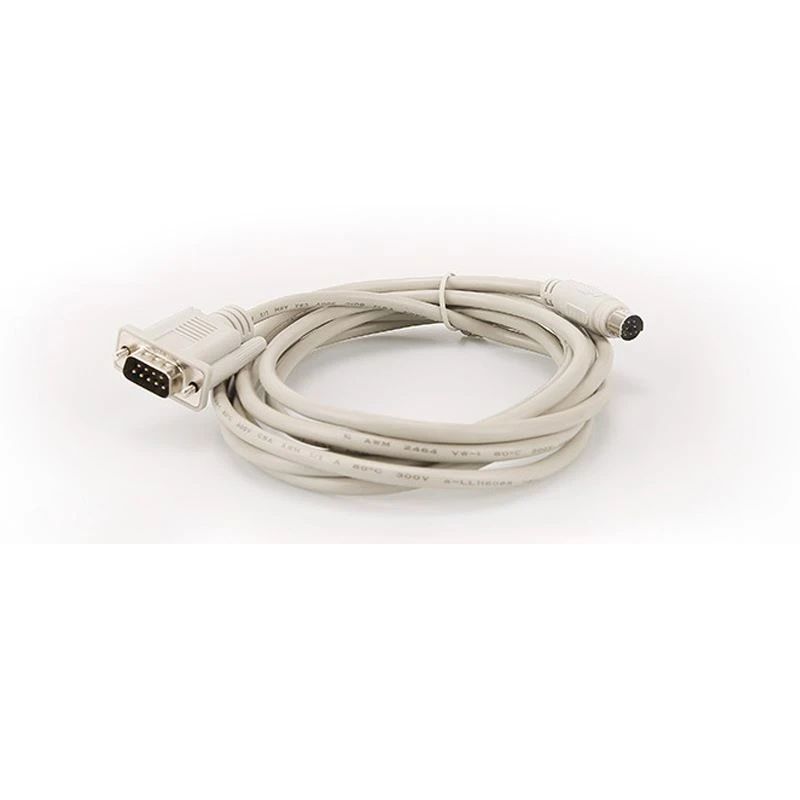
For example, if you need a cable to connect a projector mouse to your computer, you can try our DB9 Male To Mini Din 6pin PS2 Projector Mouse Cable. This cable is specifically designed for this type of connection.
Step 6: Consider Cable Length
The length of the serial cable can also affect the connection speed. Longer cables can introduce more signal loss and interference, resulting in a slower connection. Here are some guidelines to follow:
- Maximum Length: Refer to the device manuals or the cable specifications to determine the maximum recommended cable length for your devices. In general, shorter cables are better for faster connections.
- Signal Boosters: If you need to use a longer cable, consider using a signal booster or a repeater. These devices can help to amplify the signal and improve the connection quality over longer distances.
Step 7: Seek Professional Help
If you have tried all the above steps and are still unable to resolve the slow serial cable connection issue, it may be time to seek professional help. A qualified technician can perform more advanced troubleshooting and diagnostic tests to identify and fix the problem.
Conclusion
Troubleshooting a slow serial cable connection can be a frustrating process, but by following these steps, you can often identify and resolve the issue. Remember to check the cable, verify the baud rate, check for interference, update device drivers, test with different devices, consider cable length, and seek professional help if needed.
If you are in the market for high-quality serial cables, we offer a wide range of products to meet your needs. Our cables are designed and manufactured to the highest standards, ensuring reliable and fast connections. Whether you need a Straight Through DB9 Female to Female Cable, a DB9 Male To Mini Din 6pin PS2 Projector Mouse Cable, or a DB15 Male to Female Serial Cable, we have you covered.
If you have any questions or would like to discuss your specific requirements, please feel free to contact us. We look forward to working with you to provide the best serial cable solutions for your needs.
References
- "Serial Communication Basics." Electronics Tutorials.
- "Troubleshooting Serial Port Problems." Microsoft Support.
- "How to Choose the Right Serial Cable." Techwalla.