


As a dedicated supplier of 20 Pin SCSI Cables, I've encountered numerous scenarios where customers face challenges with these cables. Troubleshooting a 20 Pin SCSI Cable can be a daunting task, but with the right approach and knowledge, it can be effectively resolved. In this blog, I'll share some comprehensive steps and insights on how to troubleshoot a 20 Pin SCSI Cable.

1. Initial Visual Inspection
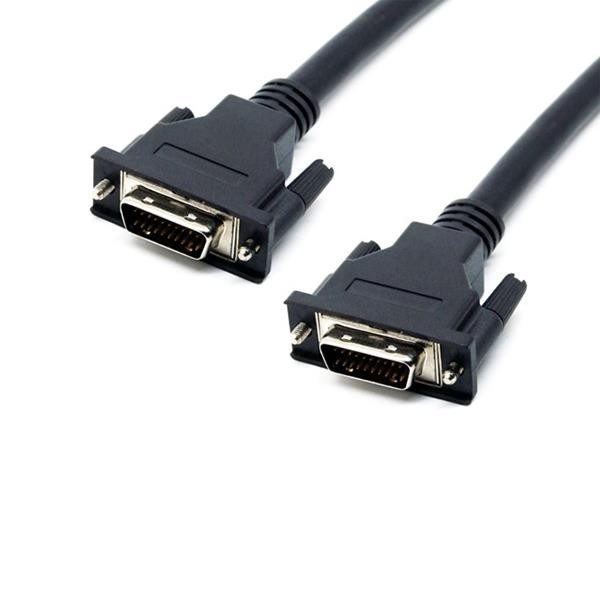
The first step in troubleshooting any cable is a thorough visual inspection. Start by checking the physical condition of the 20 Pin SCSI Cable. Look for any visible signs of damage such as cuts, frays, or bent pins. A damaged cable can lead to intermittent connections or complete signal loss.
Inspect both ends of the cable, including the connectors. Make sure the pins are straight and not corroded. Corrosion can impede the flow of electrical signals and cause communication issues between the connected devices. If you notice any bent pins, you can try to carefully straighten them using a pair of fine - tipped tweezers. However, be extremely cautious as excessive force can break the pins.
2. Check the Connection
Ensure that the 20 Pin SCSI Cable is properly connected to both the source and destination devices. Sometimes, a loose connection can mimic more serious problems. Gently tug on the cable at both ends to make sure it is firmly seated in the connectors.
If the cable has screws for securing the connection, such as in the SCSI DB 20 Pin Cable with Screw, make sure they are tightened. Loose screws can cause the cable to come loose over time, leading to unstable connections.
3. Verify Device Compatibility
Not all devices are compatible with a 20 Pin SCSI Cable. Check the specifications of both the source and destination devices to ensure that they support this type of cable. Some older devices may require a different pin configuration or SCSI protocol.
If you are using a MDR 20 Pin Cable Assembly, make sure that the devices can handle the data transfer rate and signal type associated with this cable. Incompatible devices can result in data transfer errors or the devices not recognizing each other.
4. Test the Cable with Different Devices
One of the most effective ways to determine if the cable is the source of the problem is to test it with different devices. Connect the 20 Pin SCSI Cable to a known - working device and see if the issue persists. If the cable works fine with a different device, then the problem may lie with the original device.
Conversely, if the cable fails to work with multiple devices, it is likely that the cable itself is faulty. You can also try using a different cable with the original device to confirm the diagnosis.
5. Use Diagnostic Tools
There are various diagnostic tools available that can help you troubleshoot a 20 Pin SCSI Cable. For example, a cable tester can check the continuity of the cable and identify any broken or short - circuited wires.
If you are dealing with a SCSI CN 20 Pin Servo Breakout Board Cable, some advanced diagnostic tools can also test the servo signals and ensure that they are being transmitted correctly. These tools can provide detailed information about the cable's performance and help you pinpoint the exact problem.
6. Check for EMI and RFI Interference
Electromagnetic interference (EMI) and radio - frequency interference (RFI) can disrupt the signals transmitted through the 20 Pin SCSI Cable. Make sure that the cable is not running parallel to other power cables or electronic devices that may generate EMI or RFI.
If possible, use shielded cables to reduce the impact of interference. Shielded cables have a metallic layer that helps to block external electromagnetic and radio - frequency signals. You can also try re - routing the cable to a different location to avoid areas with high levels of interference.
7. Update Device Drivers
Outdated device drivers can sometimes cause problems with the 20 Pin SCSI Cable. Check the manufacturer's website for both the source and destination devices and download the latest drivers. Installing the updated drivers can often resolve compatibility issues and improve the performance of the cable.
8. Replace the Cable
If all else fails, it may be necessary to replace the 20 Pin SCSI Cable. As a supplier, I offer a wide range of high - quality 20 Pin SCSI Cables, including the ones mentioned above. When replacing the cable, make sure to choose a cable that meets the specifications of your devices.
In conclusion, troubleshooting a 20 Pin SCSI Cable requires a systematic approach. By following these steps, you can effectively identify and resolve most issues related to these cables. If you have any further questions or need assistance in choosing the right cable for your needs, feel free to reach out for a procurement discussion. We are committed to providing you with the best solutions for your SCSI cable requirements.
References
- "SCSI Technology Handbook" by various industry experts
- Manufacturer's documentation for SCSI devices and cables